
Free & Open Source

Your Blood Glucose,
Right on Your Stream Deck

A real-time CGM display for Elgato Stream Deck. Pulls live readings from Nightscout — supporting virtually every CGM on the market — so you never have to reach for your phone.

⬇ Download Plugin View on GitHub

Live button designs — all three actions

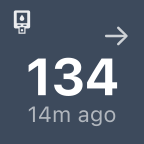
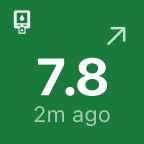
Glucose Display

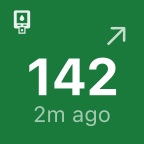
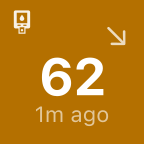
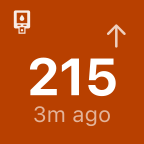
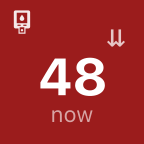
Current BG reading, trend arrow, and reading age — color-coded by alert level.

In range In Range
142 ↗
Low Low
62 ↘
High High
215 ↑
Urgent Urgent
48 ⇊
Stale Stale
>10 min
mmol/L mmol/L
7.8 ↗

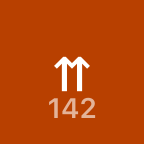
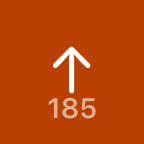
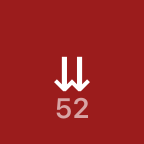
Trend Indicator

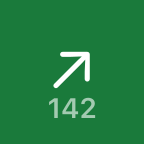
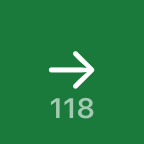
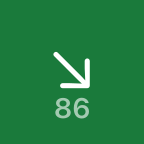
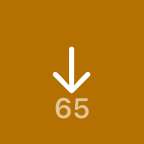
Large directional arrow showing how fast and in which direction your glucose is moving. All 7 Nightscout directions covered.

Double up ⇈ Rising fast
Up ↑ Rising
Rising ↗ Slowly rising
Flat → Stable
Falling ↘ Slowly falling
Down ↓ Falling
Double down ⇊ Falling fast

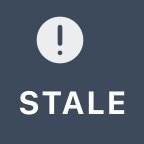
Alert Status

At-a-glance badge showing your current glucose alert level. Great for a quick peripheral check.

OK OK
Low LOW
High HIGH
Urgent URGENT
Stale STALE
📡

Works with every CGM

Powered by Nightscout — an open-source platform that integrates with Dexcom, Libre, Medtronic, Eversense, and more.

🎨

Color-coded at a glance

Green, yellow, red, and gray backgrounds tell you your status instantly without reading the number.

Auto-updating

Polls your Nightscout instance every 60 seconds (configurable 30s–5min). Pressing the button forces an immediate refresh.

🔒

Your data stays yours

The plugin talks directly to your own Nightscout server. No third-party cloud, no account required.

🌍

mg/dL and mmol/L

Switch units in the Property Inspector. Custom low/high thresholds let you define your own target range.

💻

Free & open source

MIT license. Built with the Elgato Stream Deck SDK v3. Contributions welcome.

Why this exists

Built by a diabetic, for anyone
managing blood sugar

I'm Josh, a Type 2 diabetic wearing a continuous glucose monitor. As someone who spends long hours at a computer, I kept reaching for my phone just to check whether my blood sugar was drifting in the wrong direction. One glance away from my work became five.

I already had a Stream Deck on my desk — an always-visible panel of buttons I use for audio, meetings, and shortcuts. It seemed obvious: put the glucose reading right there, updating automatically, visible in my peripheral vision without any interaction.

Nightscout — the open-source CGM data platform originally built by parents of Type 1 diabetic children who wanted remote visibility into their kids' glucose levels — turned out to be the perfect backend. It ingests data from virtually every CGM on the market and exposes a clean REST API.

This plugin is the result. It's free, it's open source, and I hope it helps anyone who wants their glucose data a little closer to hand.

Setting up Nightscout

Nightscout is an open-source, self-hosted platform that collects CGM data and exposes it via a REST API. It's free and has been maintained by the diabetes community since 2014. Full documentation is at nightscout.github.io.

Already have Nightscout? Skip to step 4 — just grab your site URL and API secret.
1

Connect your CGM to Nightscout

Nightscout supports virtually every CGM in use today:

  • Dexcom G6 / G7 / Stelo — via the Dexcom Share API or direct upload from the Dexcom app
  • Abbott Libre 2 / 3 — via xDrip+, Juggluco, or Shuggah (iOS)
  • Medtronic — via the 600-series uploader or MiniMed Connect
  • Eversense — via the Eversense CGM app uploader
  • Omnipod / Loop / OpenAPS — direct integration built-in

See the full compatibility list at nightscout.github.io/uploader/uploaders.

2

Deploy a Nightscout instance

The easiest way is a hosted service that handles the server for you:

  • T1Pal — managed Nightscout hosting (~$11.99/mo)
  • ns.10be.de — community hosting in Europe
  • Railway — self-deploy from the Nightscout GitHub template (free tier available)
  • Fly.io — low-cost PaaS, ~$3–5/mo

For DIY deployment instructions see nightscout.github.io/nightscout/new_user.

3

Note your API secret

During Nightscout setup you'll set an API_SECRET environment variable — a passphrase at least 12 characters long. Write it down; you'll need it in the plugin.

If your site is configured with AUTH_DEFAULT_ROLES=readable (public read access), you can leave the API Secret blank in the plugin.

4

Connect the Stream Deck plugin

Once the plugin is installed and an action is on your deck:

  • Click the action to open its Property Inspector in the Stream Deck app
  • Enter your Nightscout URL — e.g. https://my-ns.fly.dev
  • Enter your API Secret
  • Click Test Connection — it will show your current reading if everything is working
  • Set your target range (default: 70–180 mg/dL) and preferred units
Using Shuggah on iOS? Go to Settings → Nightscout in the Shuggah app and enter the same URL. Shuggah will upload your Libre readings automatically.
5

That's it

The button will update automatically on your configured interval. Press it any time to force an immediate refresh. Add all three action types to different buttons for a full glucose dashboard on your deck.

Installation

The plugin requires Stream Deck 6.9+ and macOS 12+ or Windows 10+.

1

Download the plugin

Download the latest .streamDeckPlugin from the GitHub Releases page.

2

Install

Double-click the downloaded file. Stream Deck will ask to confirm the installation.

3

Add an action

In the Stream Deck app, find CGM via Nightscout in the actions panel on the right. Drag Glucose Display, Trend Indicator, or Alert Status onto a key.

Color guide

Green — in target range
Yellow — near threshold
Red — out of range
Dark red — urgent
Gray — stale / no data